
RStudio is an integrated development environment (IDE) for R, developed by Posit (formerly RStudio, Inc.). RStudio includes a console, a syntax-highlighting editor that supports direct code execution, and tools for plotting, history, debugging, and workspace management. RStudio is available in both a free open-source edition and a commercial edition.
RStudio comes as a Desktop version and a Server version. The Desktop version is installed locally on your computer, while the Server version runs on a central server and is accessible through a web browser.
Installation
RStudio Desktop can be downloaded for free from the Posit website. R must be installed first, as RStudio uses R as its computation engine:
- First install R if you haven’t already
- Then download RStudio Desktop
Choose the version for your operating system, download the installer, and follow the installation wizard.
If you don’t have administrator access on your computer, you can use the UHH RStudio Server (see below).
The Graphical User Interface (GUI)
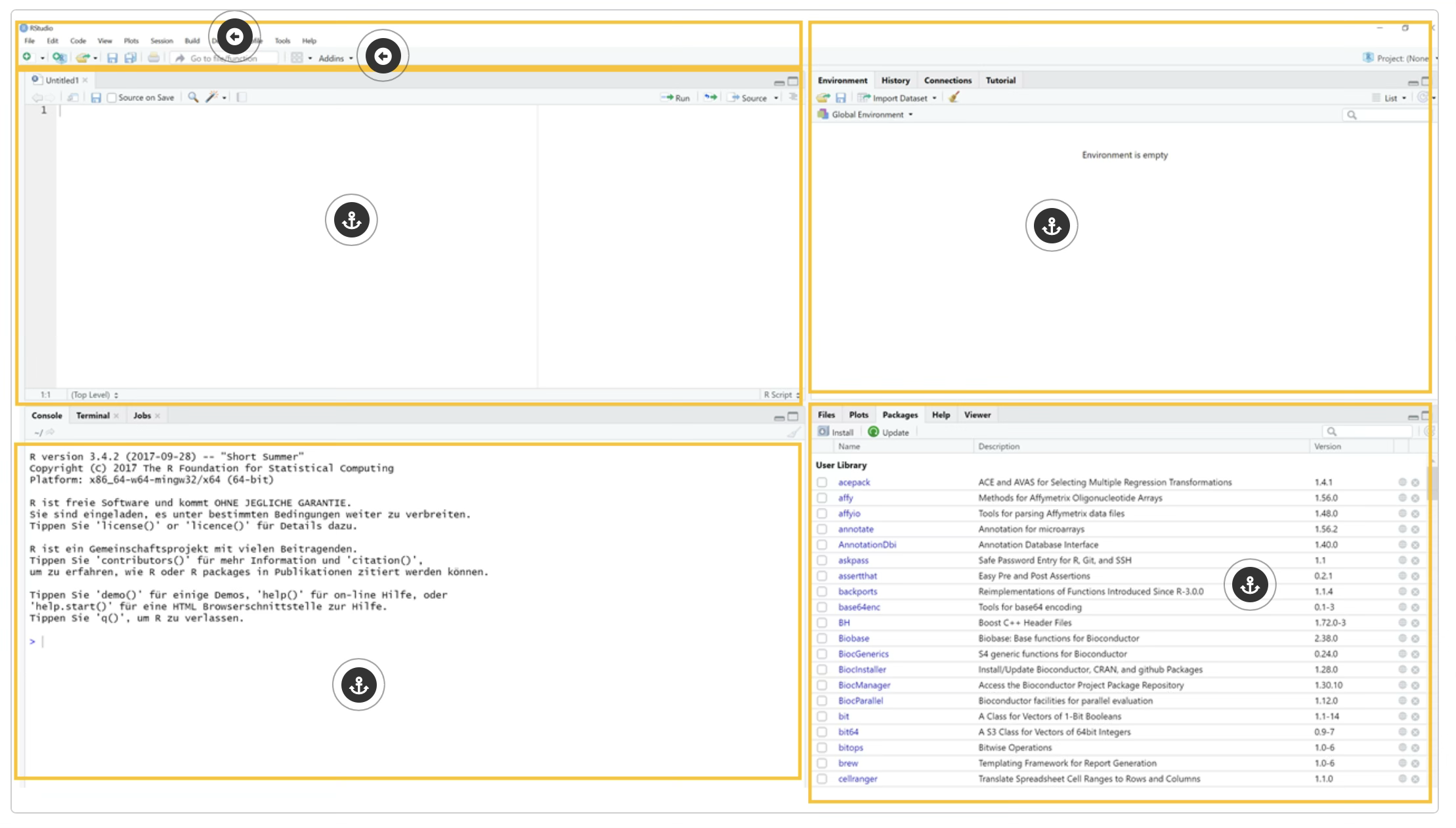
When you start RStudio, you will see a four-pane interface that enables an efficient workflow. Each pane has a specific function:
Script Pane (top left) – Here you open and edit text files containing R source code. Scripts enable transparency and reproducibility of your analyses, as all steps are documented and can be re-executed at any time. Code is sent to the console and executed line by line or as a selected block using
Ctrl+Enter(orCmd+Enteron macOS).R Console (bottom left) – The console is the core component of RStudio. R commands are entered directly here and results are displayed immediately. You can recognise its readiness by the
>prompt. The console is particularly useful for quick calculations and testing individual commands. The Terminal and Background Jobs are also accessible in this area.Environment/Workspace (top right) – This pane displays all currently stored functions and objects (e.g., variables, datasets, lists). At the start of a new R session, this area is empty. As you create or load objects, the environment view fills up. Additionally, you will find the command history and database connections here.
Files/Data Manager (bottom right) – This pane replaces manual file management and provides direct access to your working directory and project files. In addition to the file browser, you will find the graphics output (Plots), package management (Packages), the integrated help system (Help), and the Viewer for HTML content.
RStudio Server/Posit Workbench
The Institute of Marine Ecosystem and Fishery Science (IMF) provides a Posit Workbench (formerly RStudio Server Pro) for teaching in the Department of Biology, accessible through a web browser. This is especially useful if you cannot or do not want to install R and RStudio locally. The workbench is accessible both from inside and outside the campus – a VPN is not required. Login credentials are sent to you by email at the start of the course. All required R packages and swirl courses are pre-installed on the workbench, so you can start working right away.
- URL: provided via the Moodle course
- Login: A username and password will be sent to you by the IMF administrator via email at the beginning of the Data Science 1 module.
The Posit Workbench user interface is nearly identical to the RStudio Desktop version. All scripts and files you create on the server are stored there and will be available again when you next log in.
A detailed guide on using the RStudio Server/Posit Workbench is available in our handbook: Download RStudio Server Guide (PDF)
A detailed guide on how to use the Posit Workbench / RStudio Server can be found in our manual Download the RStudio Server Guide, which is available on Moodle (currently only in German).
Additionally, the MIN Faculty offers the option to launch RStudio directly via their JupyterHub. After logging in with your B-Kennung, you can start an RStudio session there – without any local installation. For more information about JupyterHub, see our Jupyter page.
Further Resources
- Posit – Official website of Posit (makers of RStudio)
- RStudio Desktop Download – Free download
- RStudio Cheatsheets – Quick reference sheets for RStudio and R packages
- Lecture slides: Introduction to Programming and R – From our Data Science 1 course