LibreOffice Calc is a free spreadsheet program and part of the open-source office suite LibreOffice. It is very similar to Microsoft Excel in functionality and provides a familiar working environment for data analysis and management.
LibreOffice Calc uses the OpenDocument Format (.ods) by default but can also open and save Excel files (.xlsx) without any issues. It is freely available for Windows, macOS, and Linux and is used as an entry point into data analysis in Data Science 1.
Installation
LibreOffice can be downloaded for free from the official website:
Choose the version matching your operating system (Windows, macOS, or Linux). After downloading, run the installer and follow the installation wizard.
The Graphical User Interface (GUI)
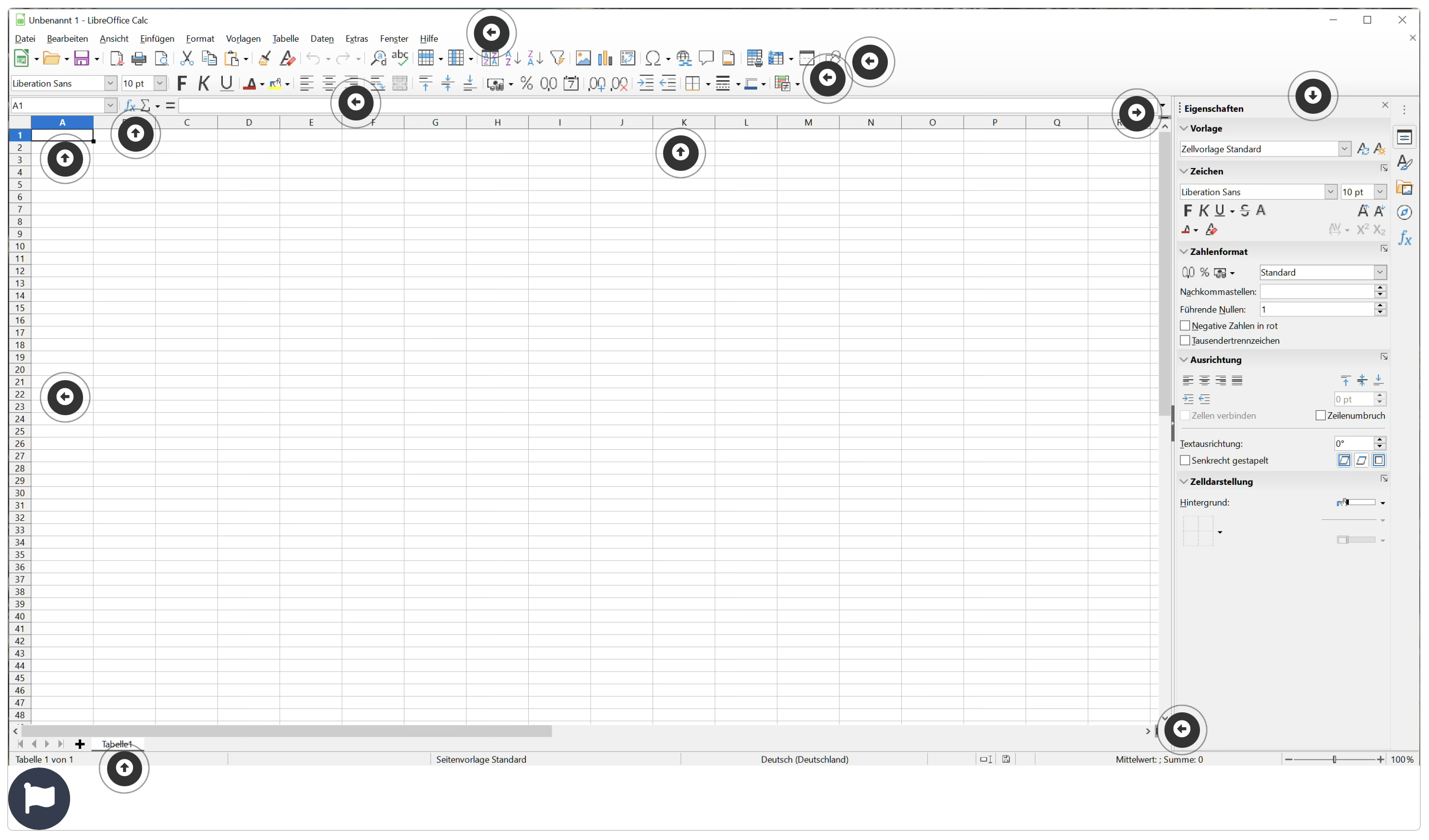
The LibreOffice Calc user interface consists of the following 12 main elements:
- Menu bar – The topmost bar containing the main menus (File, Edit, View, Insert, Format, Styles, Sheet, Data, Tools, Window, Help). Through these menus you have access to all functions and settings in Calc.
- Quick access toolbar – The toolbar directly below the menu bar, providing frequently used actions as icons (e.g. Save, Undo, Copy, Paste, Print). This allows you to execute important commands with a single click.
- Formatting toolbar – An additional toolbar with tools for cell formatting, such as font type, font size, bold/italic/underline, text colour, background colour, text alignment, and number formats.
- Formula input bar (Formula bar) – The input line where the content of the currently selected cell is displayed. Here you can enter or edit text, numbers, and formulae directly. The cell address (e.g. A1) is shown to the left of the input line.
- Function wizard – A small icon next to the formula bar that opens the function wizard. It helps you select and correctly enter functions (e.g. SUM, AVERAGE, IF) and displays their syntax and required arguments.
- Columns (letters A, B, C, …) – The column headers at the top of the spreadsheet. Each column is identified by a letter (A, B, C, … Z, AA, AB, …). Clicking on a column header selects the entire column.
- Rows (numbers 1, 2, 3, …) – The row headers on the left side of the spreadsheet. Each row is identified by a number (1, 2, 3, …). Clicking on a row header selects the entire row.
- Cell (e.g. A1 = intersection of column/row) – The individual cell is the basic unit of the spreadsheet. It is located at the intersection of a column and a row and is identified by the combination of column letter and row number (e.g. A1, B3, C12). Text, numbers, or formulae can be entered into each cell.
- Properties panel – An optional side panel (accessible via View > Sidebar) that displays properties of the currently selected cell or range, such as formatting, cell styles, and further options.
- Split view lines – Small handles at the top of the vertical scrollbar and at the right end of the horizontal scrollbar. By dragging these lines you can split the worksheet into two or four areas to view different parts of the table simultaneously. This is particularly useful for large datasets.
- (see element 10 – horizontal and vertical split lines)
- Worksheet tabs – At the bottom of the window you will find tabs for the individual worksheets of the workbook. You can switch between sheets, add new sheets, rename sheets, or access further options via right-click.
Handbook & Course Materials
Comprehensive materials are available to help you get started with LibreOffice Calc:
- Calc handbook: A comprehensive handbook for LibreOffice Calc covering all important functions from the basics to advanced topics: Download Calc Handbook (PDF)
- Lecture slides: The LibreOffice Calc lecture slides – from creating tables, calculations in Calc, and creating charts to exporting as CSV.
- Keyboard shortcut cheatsheet: A cheatsheet with the most important keyboard shortcuts for Calc: Download Calc Shortcuts (PDF)
For proper handling of decimal separators (dot instead of comma), it is recommended to set the Calc locale to English. Go to:
Tools > Options > Language Settings > Languages and set the Locale to ‘English (UK)’.
Additionally, check under Tools > Options > LibreOffice Calc > General that the option ‘Decimal separator: As locale (.)’ is enabled. This ensures the dot is used as the decimal separator, which is the international standard for data analysis and data exchange.
Microsoft Excel
Microsoft Excel is the most widely used spreadsheet program. Students at Universität Hamburg can use Excel for free via Microsoft 365 for UHH students.
All exercise solutions in our courses are designed for LibreOffice Calc. However, the fundamental concepts and functions transfer seamlessly to Microsoft Excel, as the two programs are very similar in their operation and functionality.
Recommendation
For our courses, we recommend LibreOffice Calc as it is free, cross-platform, and provides all required functionality. The concepts learned are easily transferable to Microsoft Excel.
Further Resources
- LibreOffice Download – Official download page
- LibreOffice Calc Documentation – Feature overview
- Lecture Slides: Data Science 1 (Calc) – Lecture slides (the first 3 lectures cover Calc)
- Microsoft 365 for UHH Students – Excel access through the university